
Download
Windows (stable) and macOS (Beta)
Windows: unzip it anywhere and double-click FaceNest.exe — no installer, no admin rights, no account. macOS: a Beta for Apple Silicon, unsigned — read the first-launch steps below.
Windows 10 / 11 · 64-bit
Portable build — unzip and run. No installer, no account, no admin rights.
Download FaceNest v1.0.0After downloading, verify the SHA-256 checksum (on Windows: certutil -hashfile <file> SHA256).
Third-party licences (FFmpeg / LGPLv3): This software uses code of FFmpeg licensed under the LGPLv3 and its source can be downloaded here. We ship FFmpeg unmodified, built from that exact source archive with LGPL-compatible options; the build script (configure line included) sits next to the source archive. The package also contains dav1d (BSD-2-Clause). The complete third-party notices are inside the download, in the licenses/ folder. FFmpeg is a trademark of Fabrice Bellard, originator of the FFmpeg project; FaceNest is not affiliated with, or endorsed by, the FFmpeg project.
Windows will warn you the first time: This build is not code-signed, so SmartScreen may show a blue "Windows protected your PC" panel. To continue: click More info → Run anyway. The checksum above lets you verify the file yourself first. We never ask you to turn off your antivirus.
Three steps to a running app
Unzip it to a folder you like
Non-ASCII characters in the path are fine. Make sure the
_internalfolder is extracted alongsideFaceNest.exe.Double-click FaceNest.exe
No installation, no admin rights, and nothing is written to the registry.
Face search works immediately
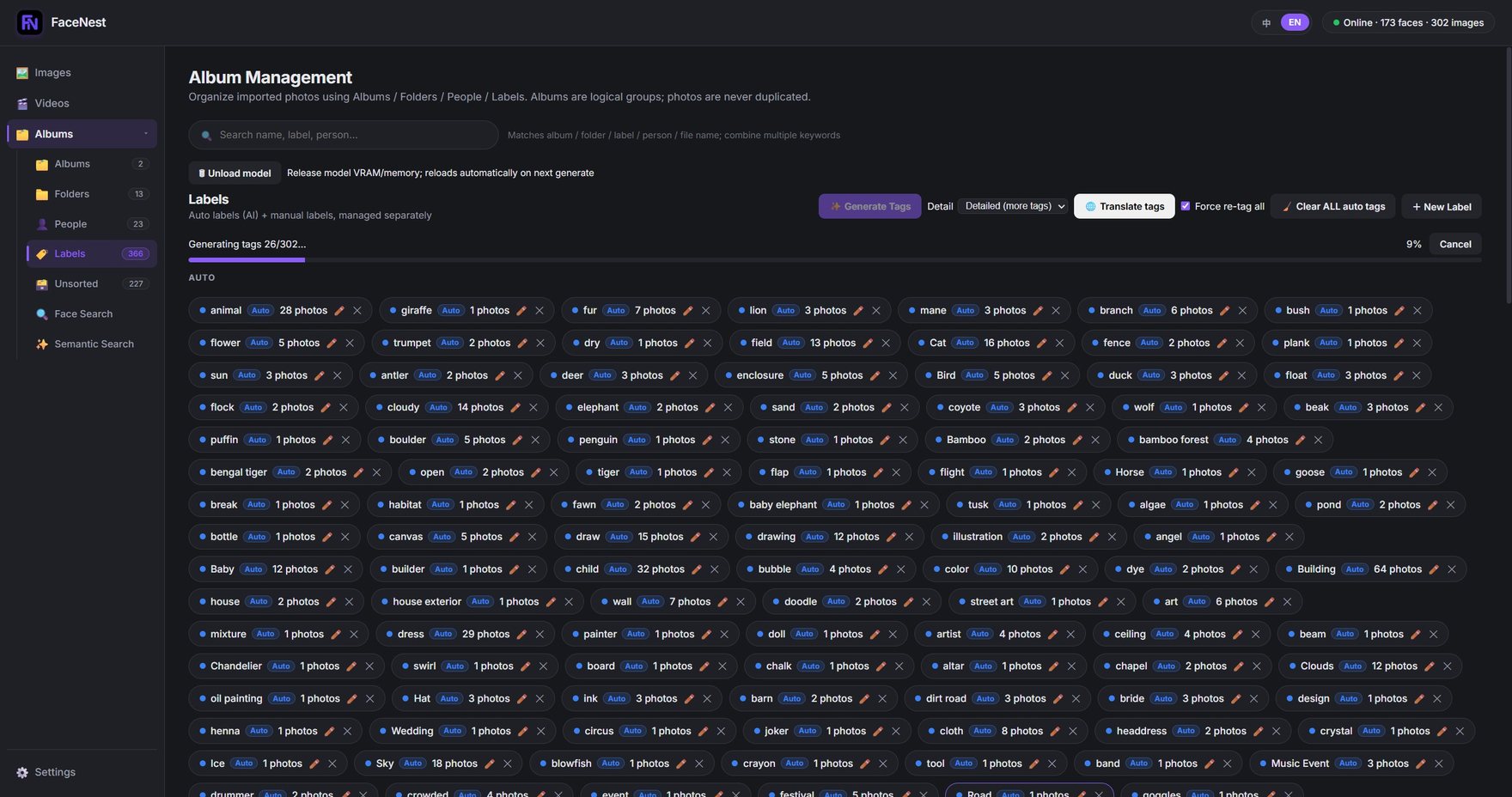
The face models and the detailed-tagging model ship inside the download, so face search works offline from the very first launch. The two larger models — label search and semantic search — download when you first use them (about 2 GB each). Stay online the first time.
System requirements
| Item | Requirement |
|---|---|
| Operating system | Windows 10 / 11 (64-bit) — verified on Windows 11 24H2 |
| Operating system (macOS) | macOS 14 (Sonoma) or later · Apple Silicon (M1 and newer) · Beta. Intel Macs are not supported — upstream PyTorch no longer publishes Intel-macOS wheels |
| Disk space — Windows | Download 6 GB; about 10 GB after unpacking, because the app ships with its core models built in |
| Disk space — macOS | Download 850 MB; about 1.7 GB installed. Your library and the optional models live in ~/Library/Application Support/FaceNest/ |
| Optional models | Downloaded on first use: up to roughly 4 GB in total, about 2 GB each |
| Graphics card | Optional. It runs without a discrete GPU — semantic search is just noticeably slower. With a GPU the backend is picked automatically: CUDA (NVIDIA) → DirectML (other Windows GPUs) → CoreML / MPS (Apple Silicon) → CPU |
| Memory | 8 GB or more recommended |
| Network | Needed only to download models, to activate, and for the periodic licence check-in. Everyday browsing and search work fully offline |
The first run is slower: The larger optional models download on first use (a few hundred MB up to about 2 GB each), and the first semantic index build takes a while too — there is a progress bar for both. How long depends on your hardware, and we do not promise a number.
macOS (Beta) and Linux
macOS 14 (Sonoma)+ · Apple Silicon
Beta · unsigned and not notarised — read the first-launch steps below before you open it.
Download for macOS (Beta)After downloading, verify the SHA-256 checksum (on macOS: shasum -a 256 <file>).
Opening it the first time
The beta is unsigned and not notarised, so Gatekeeper blocks the first launch — that is expected, not a virus warning. 🔴 Do not use "right-click → Open": on macOS 15 that dialog has no "Open Anyway" button. The route that works: double-click once, click Done, then System Settings → Privacy & Security → Open Anyway. Advanced users:
xattr -dr com.apple.quarantine /Applications/FaceNest.app.Linux — coming soon
No build is available yet, and we do not claim support before we have tested it. It will be published on this page when it is.
macOS (Beta) — on a real Mac
Not a mock-up: these are that build running on an Apple Silicon Mac.
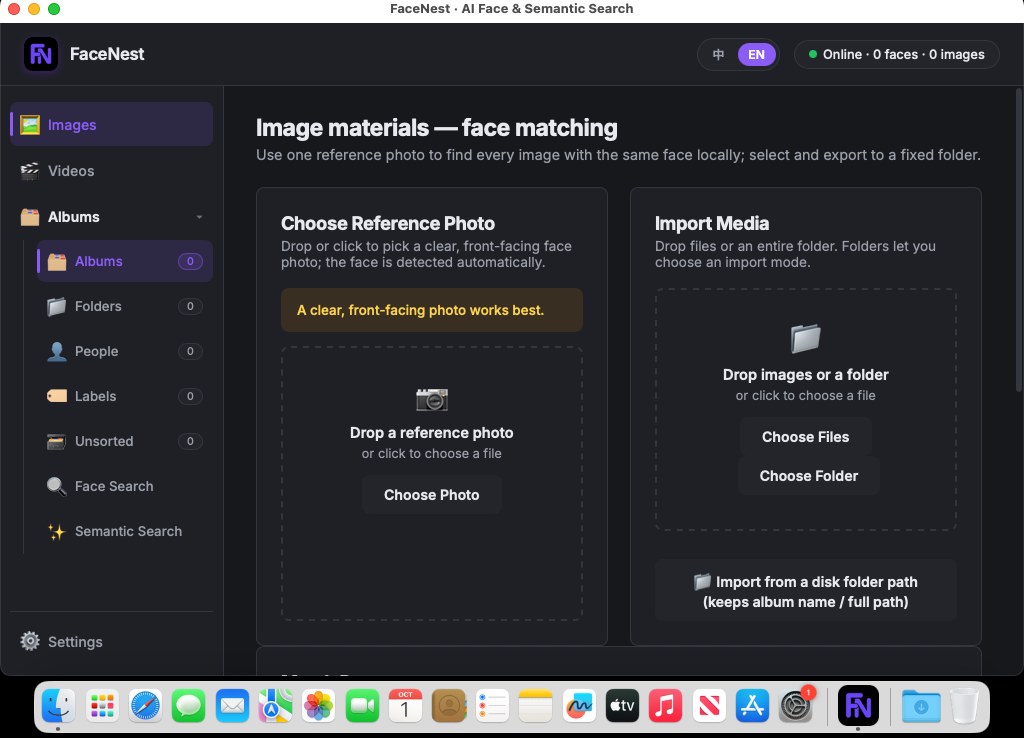
The same app as a native macOS window — same sidebar, same views, same settings page as on Windows. 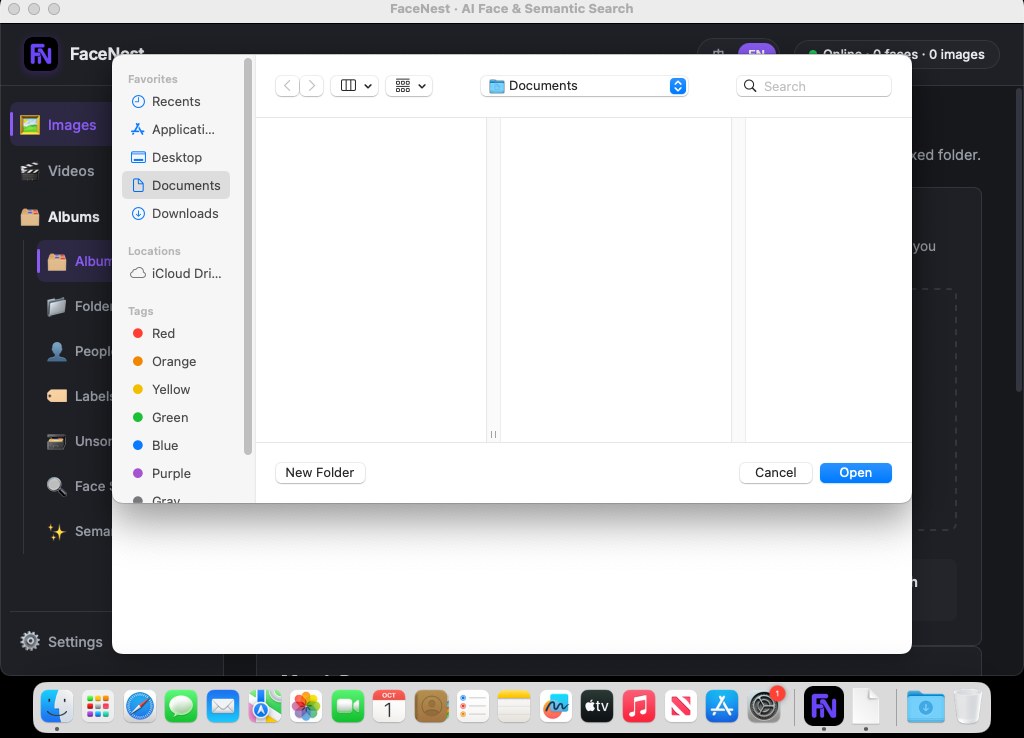
Importing uses the real macOS folder picker — no custom file dialog bolted on top. 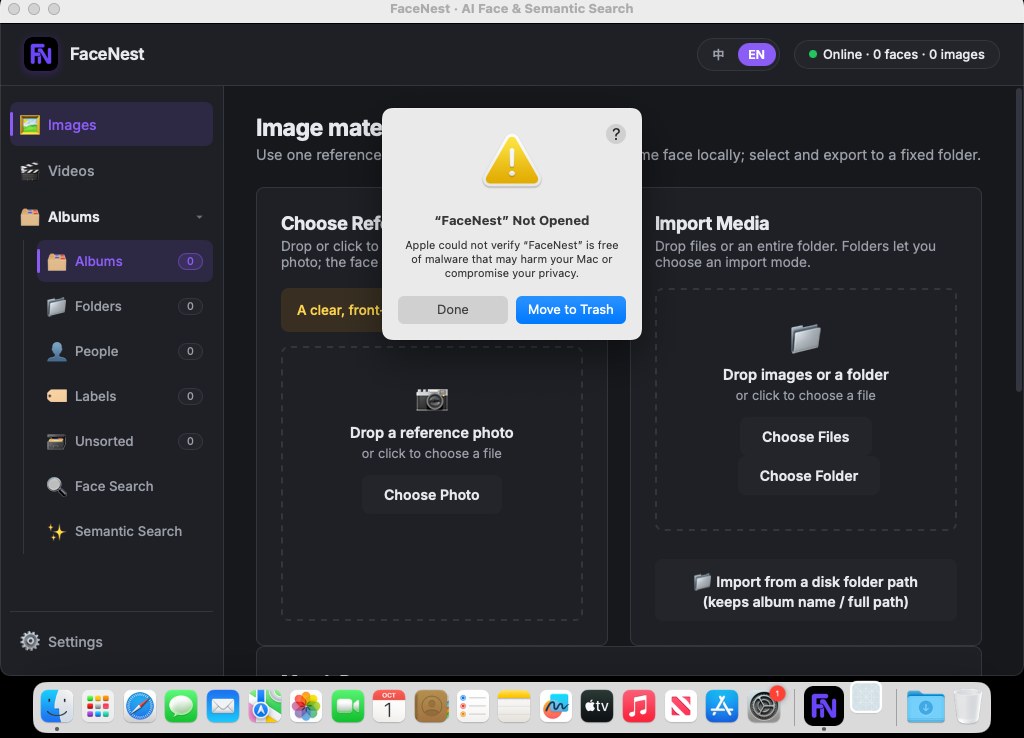
The first-launch block, photographed on macOS 15. It offers only "Done" and "Move to Trash" — which is exactly why the instructions above say System Settings, and not "right-click → Open".
Found a bug? Tell us — that is how this gets better
The fastest route is inside the app: Open Settings → Diagnostic logs, write a short description of what went wrong, and click Upload to support. ⚠️ Put an email address in the description if you want an answer — the upload itself is anonymous, so without one we can only look at the logs. You can also just email support@facenest.net.
Next steps
Already bought it?
Activation help explains how to put your licence key into the app.
Not yet?
The free tier gives you 100 photos and 20 semantic searches. See pricing when you are ready.